Getting started · Calls & Meetings
Create your first pipeline
Stand up a Calls and Meetings pipeline from a meeting-transcript ZIP. About five minutes, start to finish.
Before you begin
What you'll need
Console access
Signed in to ArcGlass with permission to create pipelines.
Input file
The onboarding ZIP file containing meeting transcripts.
At a glance
The three-step flow
01
Open Pipelines
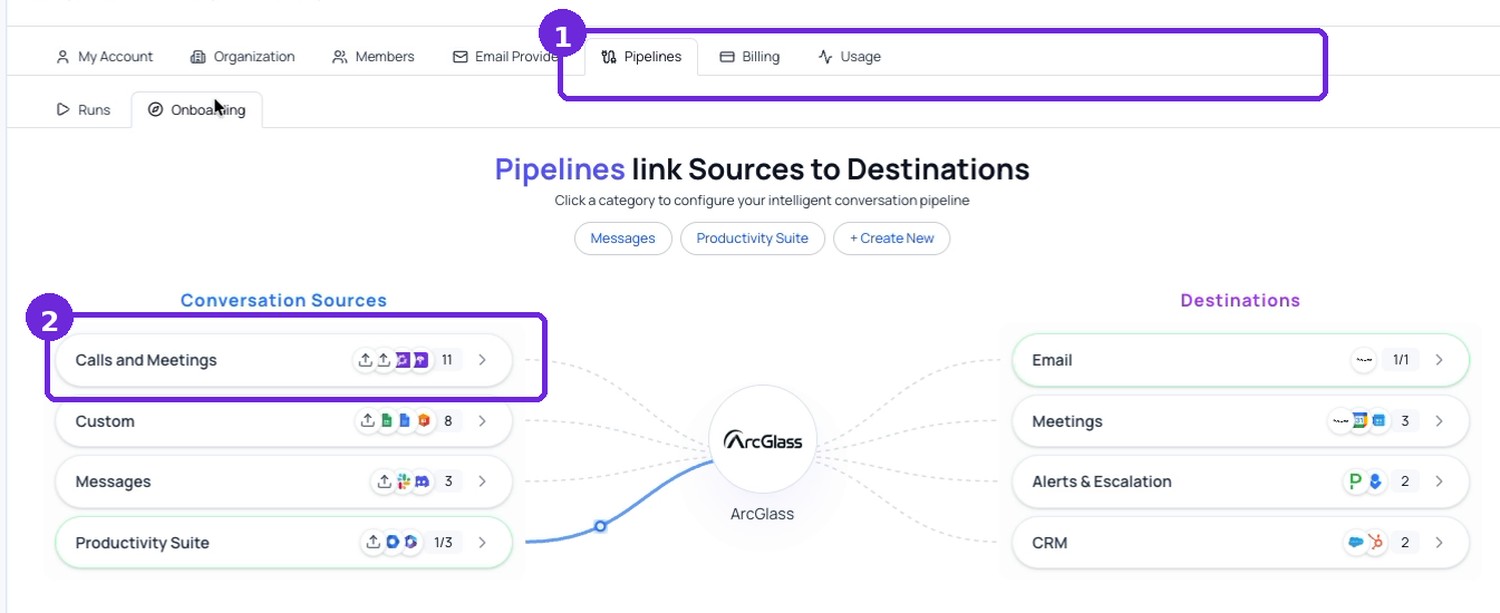
Open Settings › Pipelines › Onboarding and choose Calls and Meetings.
02
Upload transcripts
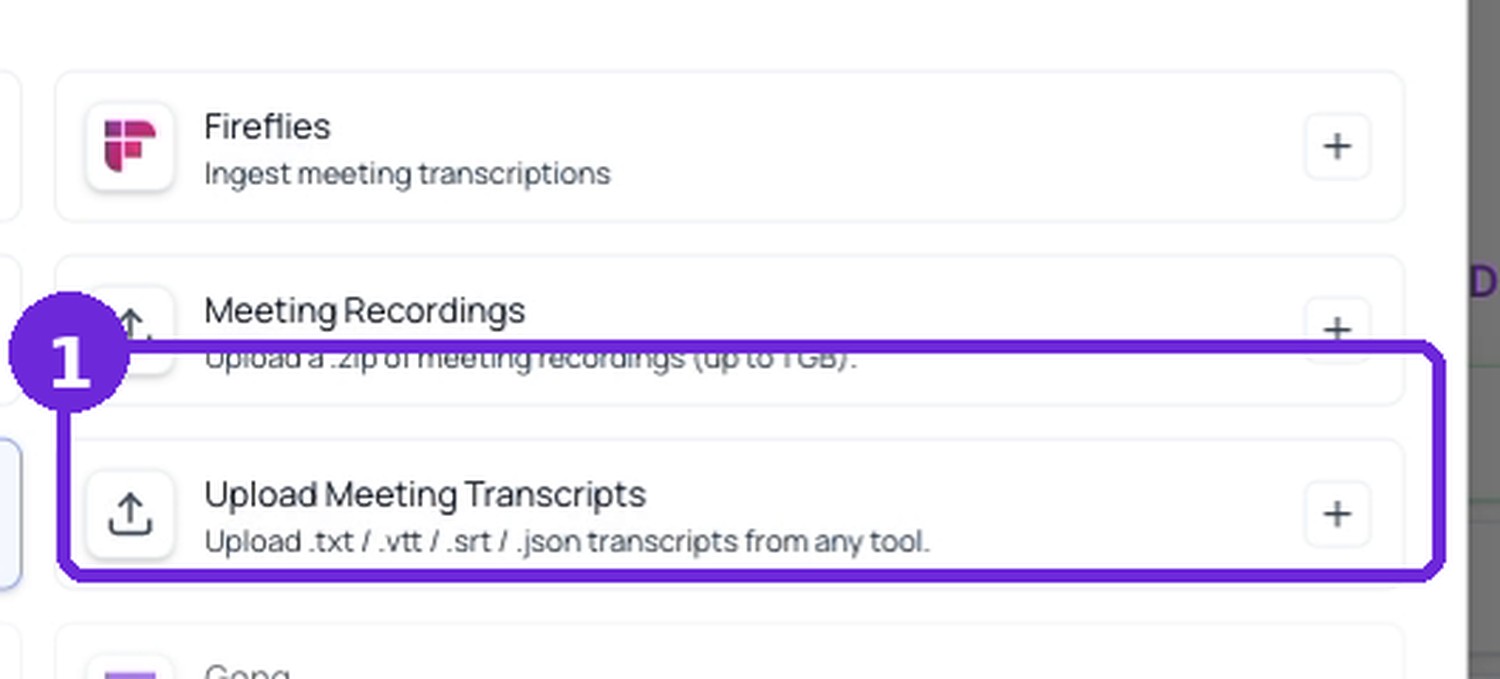
Select Upload Meeting Transcripts and add the ZIP.
03
Create pipeline
Name it, review the summary, and create.
Step by step
The full walkthrough
01
Start a Calls and Meetings pipeline
- Open Settings. Use the profile menu in the lower-left corner of the dashboard.
- Open Pipelines › Onboarding. Select Calls and Meetings.
- Choose Upload Meeting Transcripts. This is the source used for the onboarding ZIP file. Continue to Ingestion.
02
Upload the ZIP file and create the pipeline
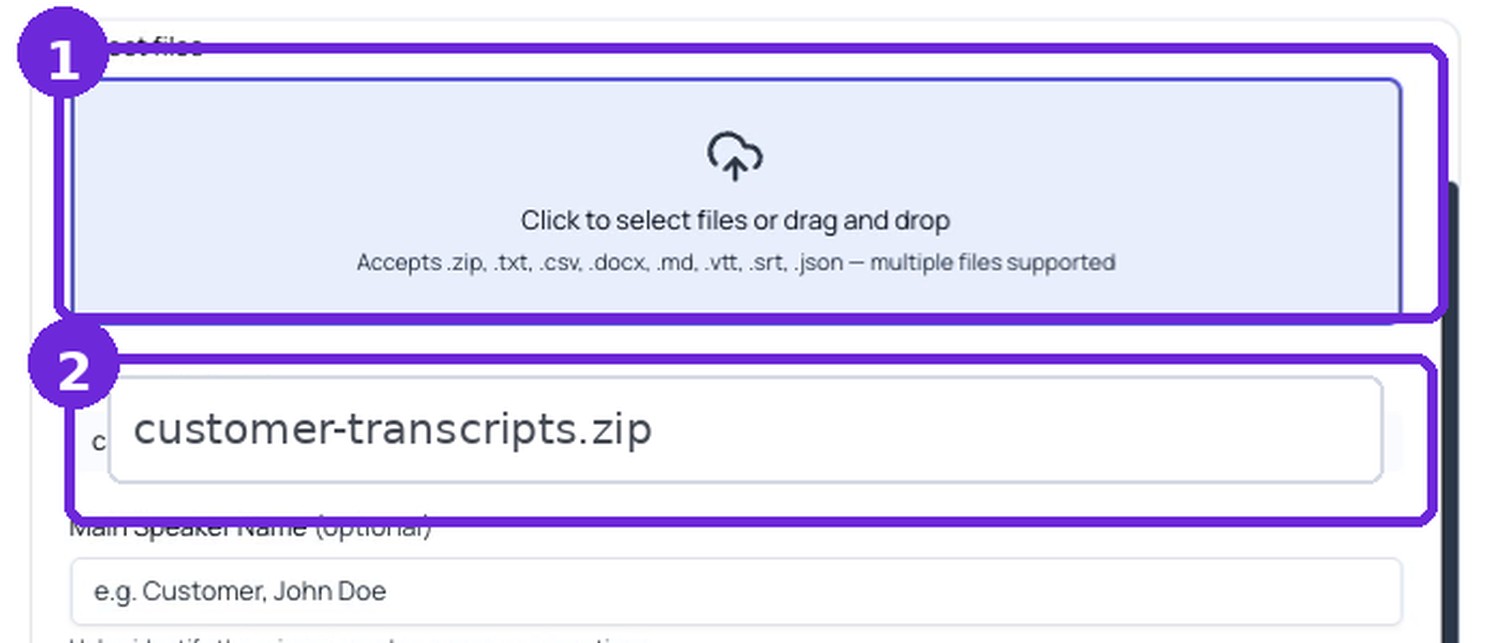
- Upload the ZIP file. Click the upload area and select the file provided for onboarding. Confirm it appears under Selected Files.
- Keep Meeting transcripts enabled. Main Speaker Name is optional.
- Continue through the wizard. Save the ingestion settings, then proceed through AI Instructions and Destinations using the supplied defaults.
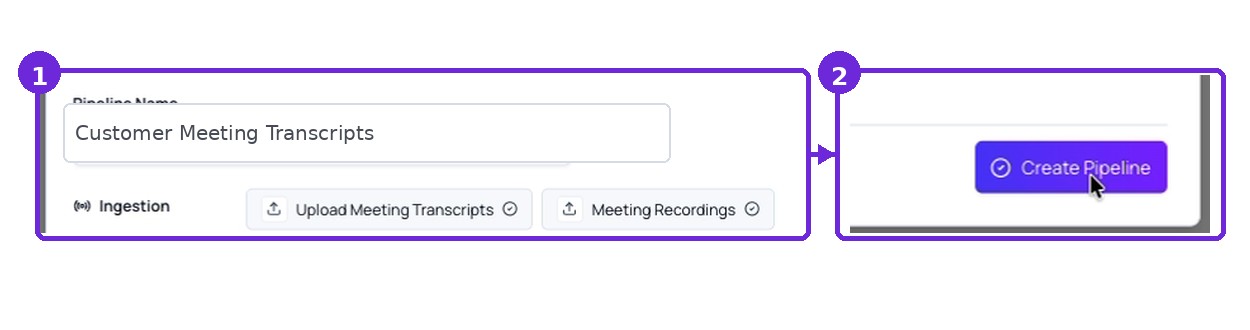
- Name and create the pipeline. Use a clear name, review the summary, and click Create Pipeline.
Confirm it worked
Confirm onboarding is complete
Open Pipeline Runs
The new pipeline should appear in the list.
Verify status
The pipeline should show Active. The run may show Started while the ZIP is processed and Completed when processing finishes.
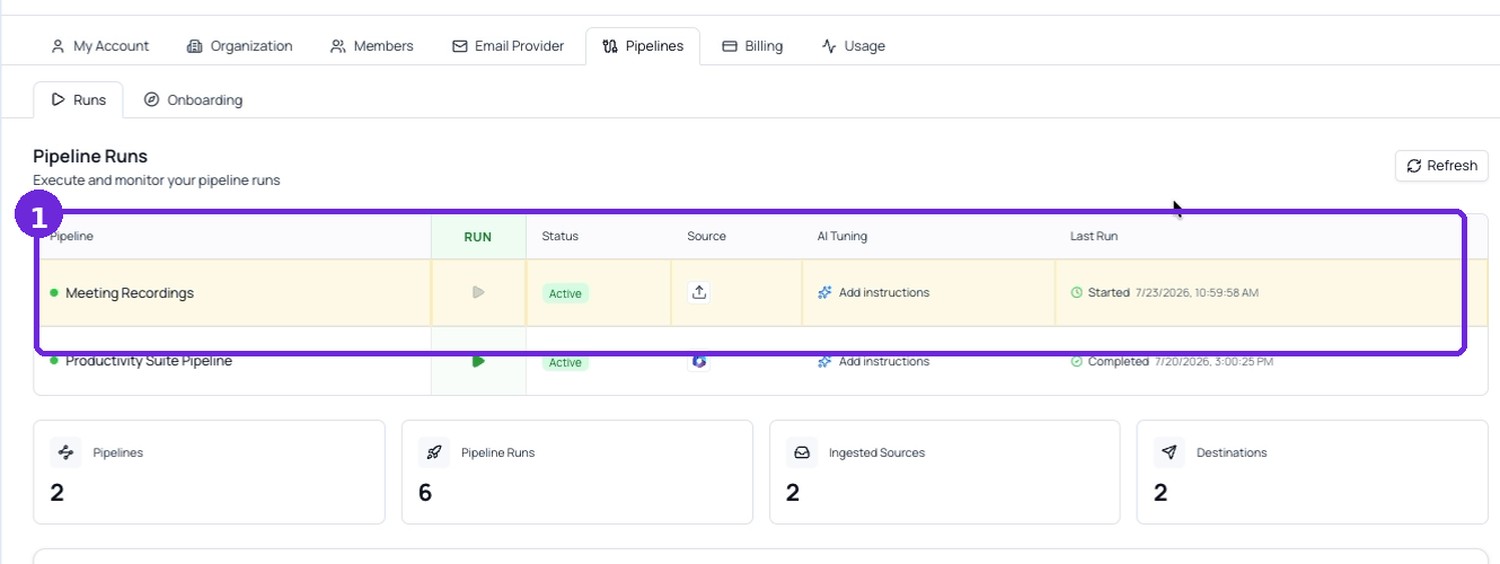
You're done when
The Calls and Meetings pipeline is Active and the uploaded ZIP has started processing.
If something's off
Quick troubleshooting
ZIP cannot be selected
Confirm the file has a .zip extension and contains transcript files.
Run remains Started
Wait for processing, then select Refresh on Pipeline Runs.
No meetings analyzed
Confirm the transcripts are in a supported format and the run completed.
Prefer a live source?
Connect a tool instead of uploading
Skip the ZIP and connect where your meetings already live — ArcGlass then ingests new calls automatically.