Getting started · Fathom
Connect Fathom to ArcGlass
Connect a Fathom account using a generated API client key and create a Calls and Meetings pipeline. About five minutes, start to finish.
Full walkthrough — connecting a meeting tool (Granola, Fireflies, Fathom) end to end.
Before you begin
What you'll need
ArcGlass access
An ArcGlass account with permission to create pipelines.
Fathom access
A Fathom account with access to Settings and Integrations.
API access
Permission to generate an API client in Fathom.
Security
A secure place to store the generated API key.
At a glance
The three-step flow
01
Select Fathom
Start a Calls and Meetings pipeline and choose Fathom.
02
Generate API key
Create an API client and copy its API key.
03
Create pipeline
Paste the key, review defaults, and create the pipeline.
Step by step
The full walkthrough
01
Start a Fathom pipeline
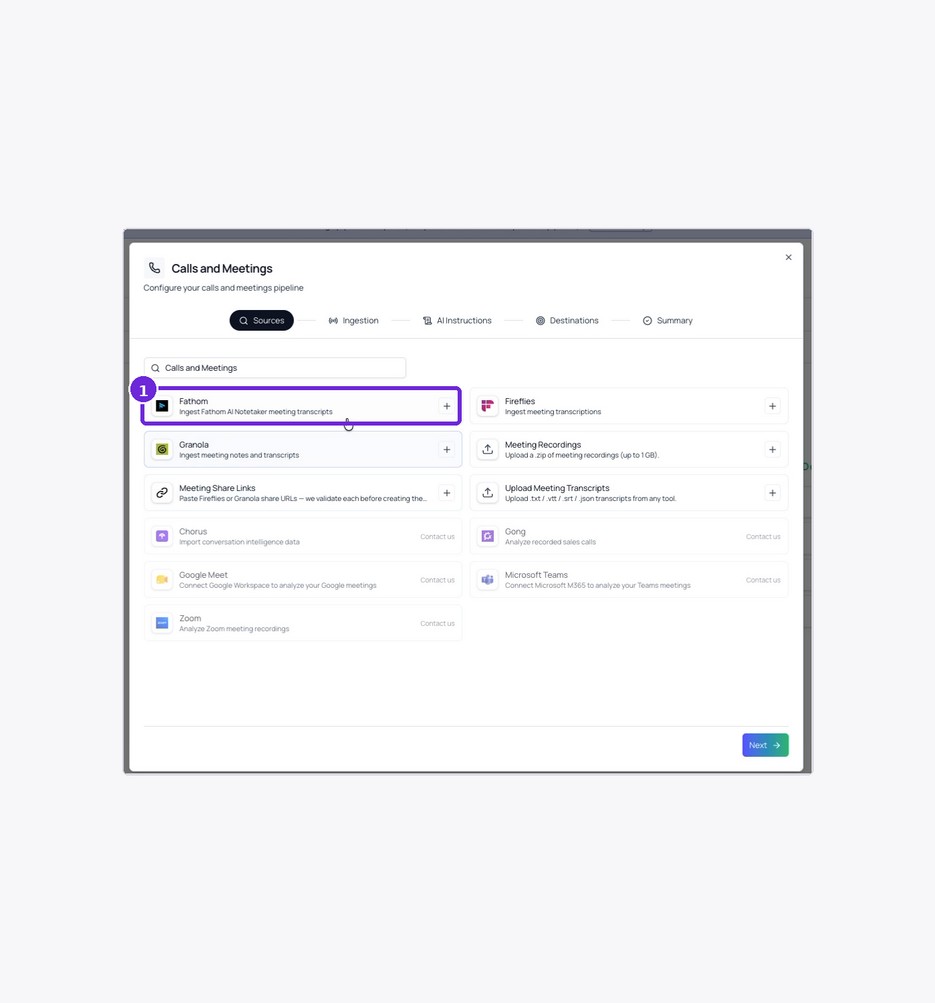
- Open Settings › Pipelines. Select Onboarding, then start a Calls and Meetings pipeline.
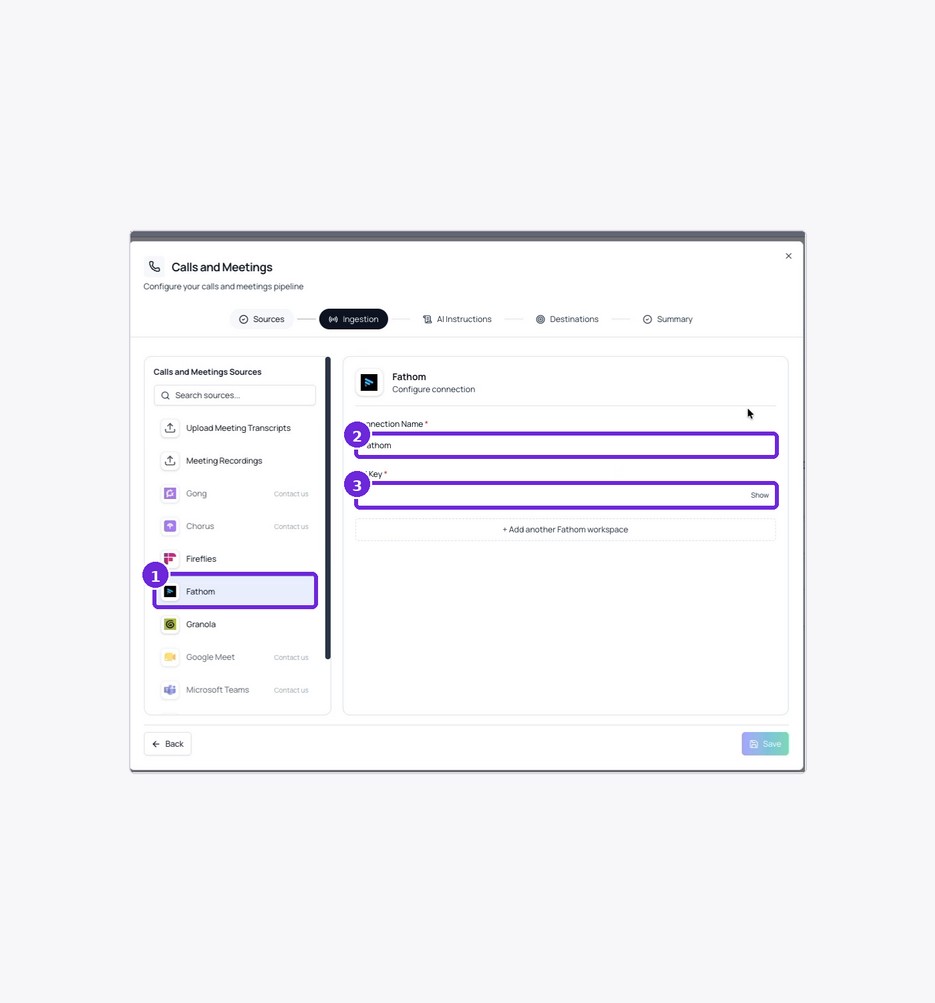
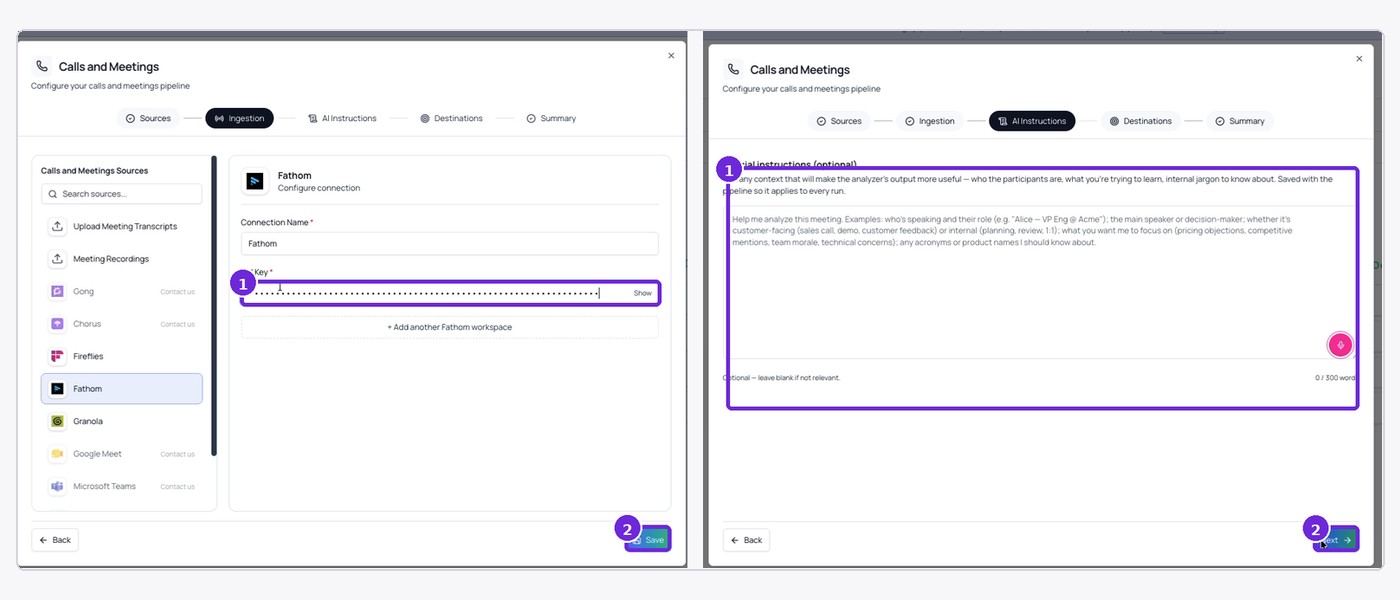
- Choose Fathom. On the Sources page, select Fathom from the available meeting sources.
- Review the connection fields. Keep the Connection Name as Fathom unless you need a different label.
- Open Fathom in another tab. Sign in to the Fathom account that ArcGlass should process.
Tip — Copy the API Key into ArcGlass. Do not paste the Webhook Secret into the API Key field.
02
Generate a Fathom API key
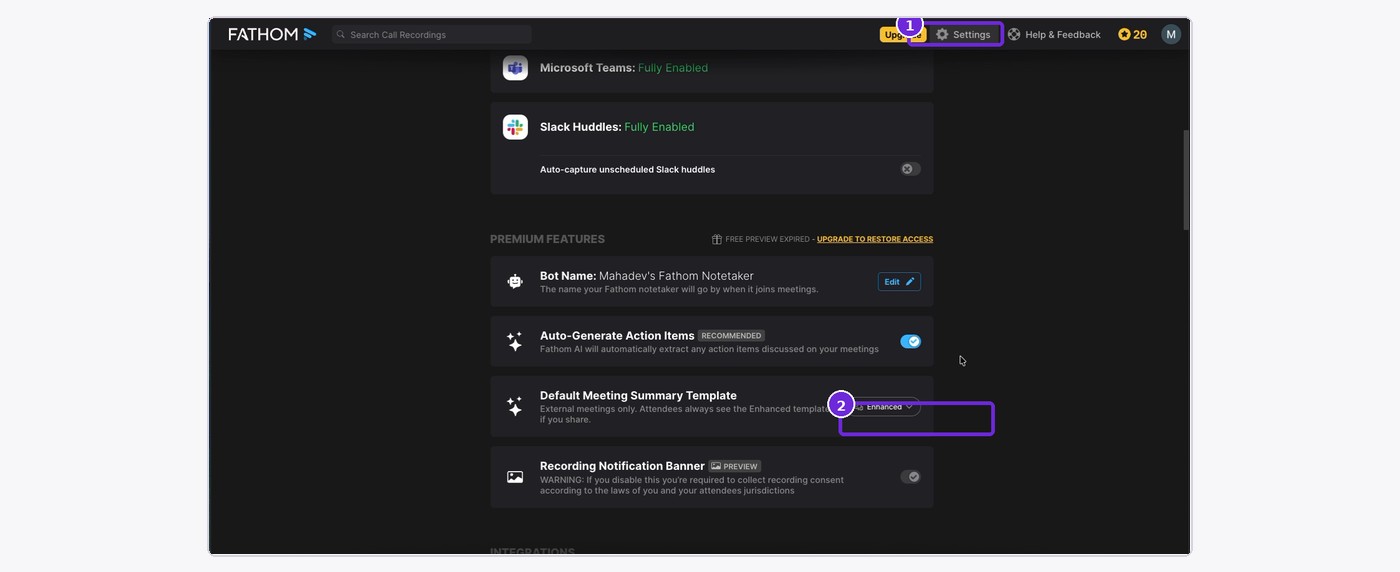
- Open Fathom Settings. Select Integrations and locate API Access.
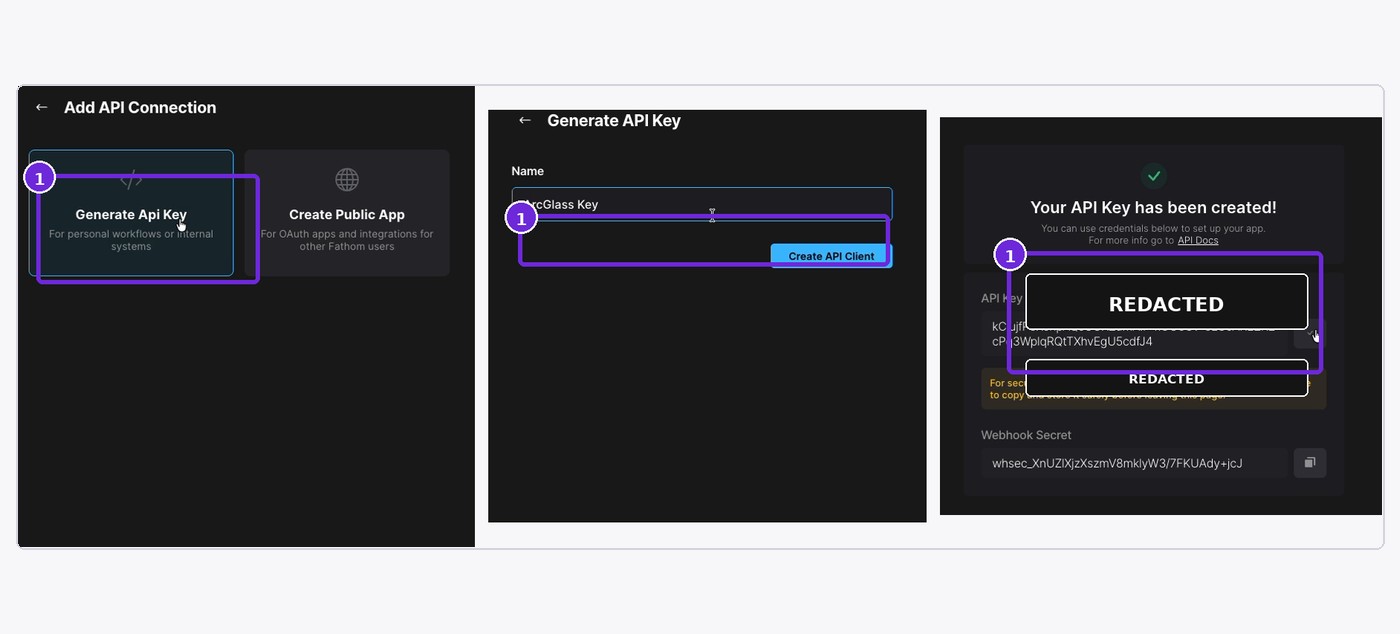
- Select Manage. Choose Generate API Key under Add API Connection.
- Name the client. Enter a recognizable name such as ArcGlass Key, then select Create API Client.
03
Connect Fathom and create the pipeline
- Copy the API Key. Fathom also displays a Webhook Secret, but ArcGlass requires the API Key for this connector.
- Paste the key in ArcGlass. Return to the Fathom integration, paste the key, and select Save or Next.
- Review AI Instructions. Keep the supplied instructions and destinations unless ArcGlass provides different settings.
- Name and create the pipeline. Review the summary and select Create Pipeline.

Confirm it worked
Confirm onboarding is complete
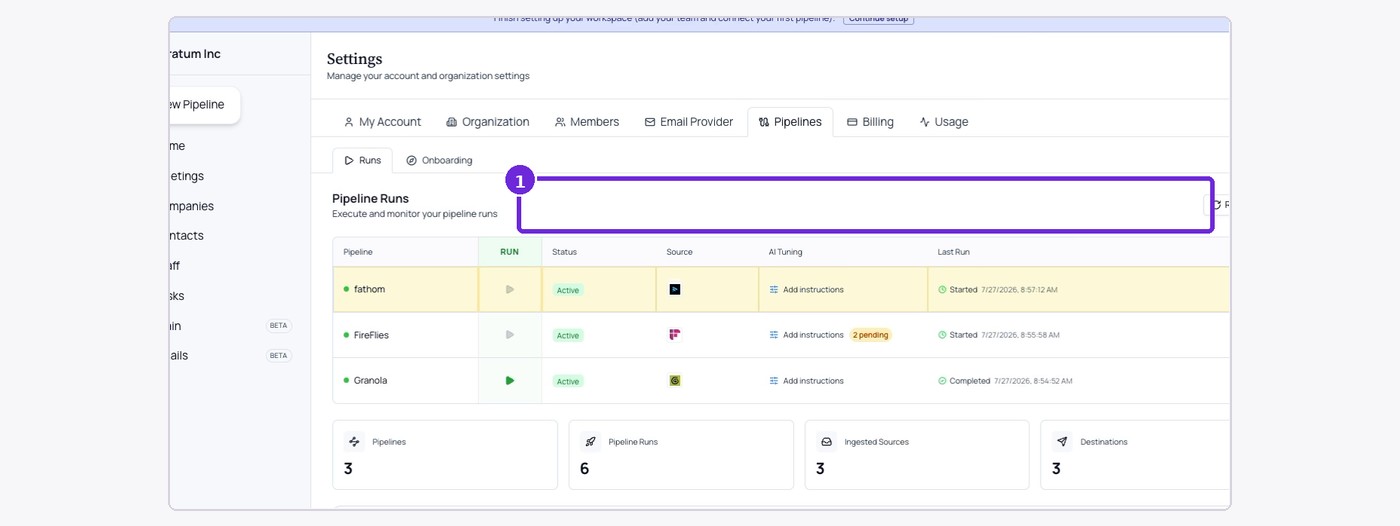
Open Pipeline Runs
The newly created Fathom pipeline should appear in the list.
Verify status
The pipeline should show Active. ArcGlass will process Fathom meeting transcripts as they become available.
You're done when
The Fathom pipeline is Active and ArcGlass can authenticate to the selected Fathom account.
If something's off
Quick troubleshooting
API Access is unavailable
Confirm the Fathom plan and account permissions allow API clients.
Connection is rejected
Copy the API Key again and make sure the Webhook Secret was not used.
Key was not saved
Generate a new API client and copy the key before leaving the page.
No transcripts appear
Confirm Fathom has recorded and processed meetings in the connected account.